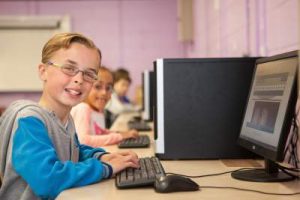
A new term of Searsol Typing classes starting next week!
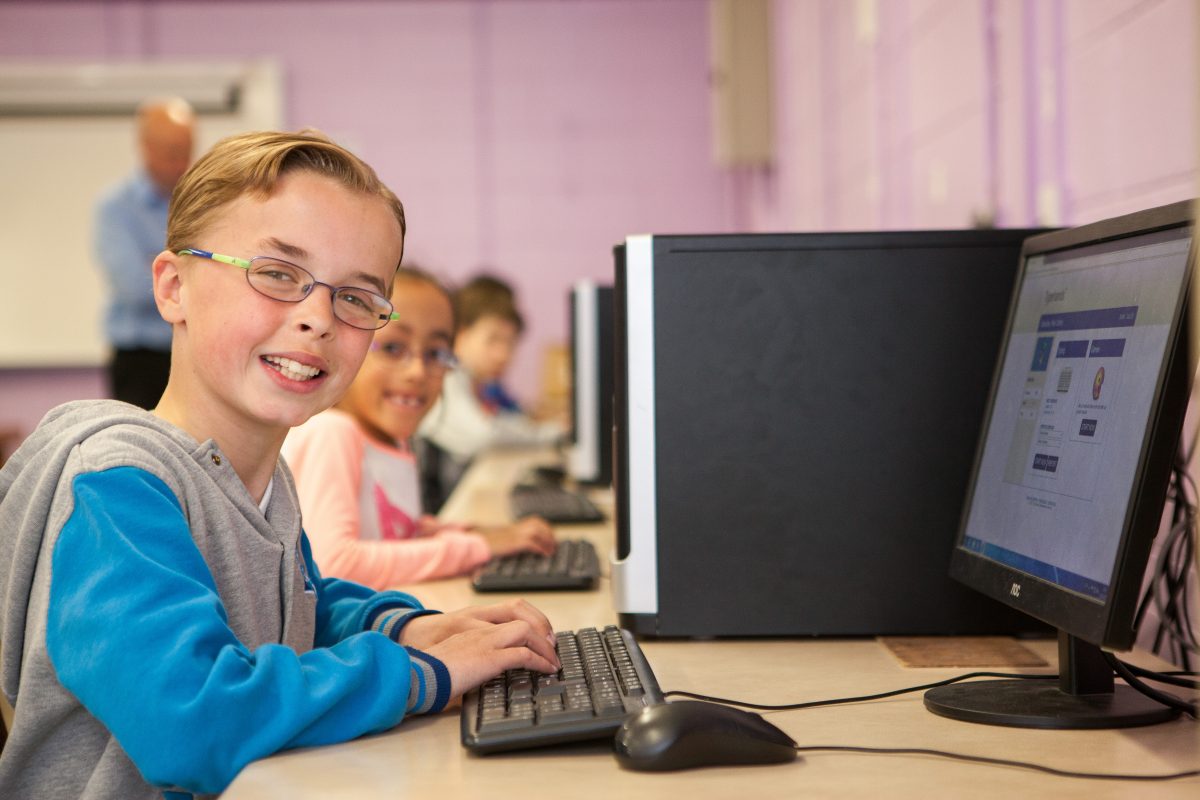
Searsol after school touch typing classes starting back next week. Our after school touch typing is a self-paced course for your child delivered in a positive environment. Our course is suitable for children with learning differences such as Dyspraxia or Dyslexia but works for all students
Searsol has been offering touch typing courses for children since 2008. We pride ourselves in having a very high success rate for children to learn how to touch type. Touch typing is being able to type without looking at the keys on the keyboard. Once a child memorises the keys on the keyboard then it a question of building up their word per minute speed to achieve the best speed.
We are using our new innovative typing program in our course centres called Typewiz. Typewiz was released in February 2020 and we have received great feedback from Students and Parents on the course.
Online computer classes via zoom starting in June and July 2020
Searsol is now offering a new online computer course using Zoom over the months of June and July. The course is aimed at students who want to improve their computer skills (Word, Presentation slides and Spreadsheets). The course covers design and animation and students will learn how to set up their own youtube channel, design their own logo and edit video and create their own images. The course also covers an introduction to coding.
The course is delivered by experienced Tutors with years of classroom teaching to children. The class size is limited to 12 students only to ensure a high quality of delivery to participants.
There are two levels of the course:
Level 1 is for primary school children from the age of 8 to 12. More details about the course are available at:
Touch typing is a valuable skill that allows individuals to type without looking at the keyboard, relying on muscle memory to locate keys. This technique, often involving placing fingers on the home row keys, can significantly improve typing speed and accuracy.
Definition of Touch Typing:
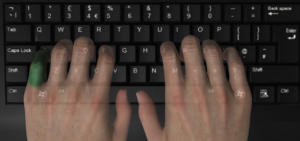
Touch typing is the ability to type without looking at the keyboard. This skill relies on muscle memory to locate keys and involves placing the eight fingers on the middle row of the keyboard, known as the home keys. The correct technique involves positioning the left hand with the little finger on the “A” key and the index finger on the “F” key, while the right hand’s index finger rests on the “J” key and the little finger on the semicolon key.
Factors Influencing Learning Time
The time it takes to learn touch typing varies widely based on several factors:
Concentration: Students with higher concentration levels will learn faster, as touch typing requires focus and persistence.
Motivation: A motivated student is more likely to practice regularly and see the benefits of touch typing, leading to quicker mastery.
Age: Younger students may take longer due to smaller hand sizes and shorter attention spans. Typically, starting at age eight is recommended.
Learning Differences: Students with learning difficulties such as dyslexia or dyspraxia may require more time and a tailored learning approach.
Estimated Learning Time
For an average student without learning differences, the time to learn touch typing can be broken down into stages based on words per minute (WPM) achieved:
Bronze Standard (15 WPM): Approximately 10 hours of practice.
Silver Standard (25 WPM): Around 30 hours of practice.
Gold Standard (40 WPM): About 70 hours of practice, allowing the student to type faster than handwriting.
Benefits of Touch Typing
Touch typing offers numerous benefits, including:
Improved Productivity: Faster and more accurate typing increases work efficiency.
Reduced Risk of Injury: Proper technique minimizes repetitive strain injuries like carpal tunnel syndrome.
Versatility: Easily adapt to typing on various devices without looking at the keyboard.
Increased Accuracy: Less reliance on visual cues reduces typing errors.
Support for Learning Differences: Helps students with dyslexia and other challenges type more accurately and efficiently.
Tips and Strategies for Learning Touch Typing
To master touch typing, consider the following tips:
Start with the Home Row: Practice the letters on the home row until you can type them without looking.
Use Typing Games and Exercises: These can make practice fun and help improve speed and accuracy.
Position Your Hands Correctly: Ensure your fingers are on the home keys, thumbs on the space bar, and index fingers on “F” and “J”.
Take Breaks: Regular breaks prevent strain and fatigue.
Use a Typing Tutor: Software programs like Typewiz provide structured lessons and exercises.
Practice Regularly: Consistent practice, even a few minutes daily, will improve your typing skills over time.
Typewiz: An Innovative Way to Learn Touch Typing
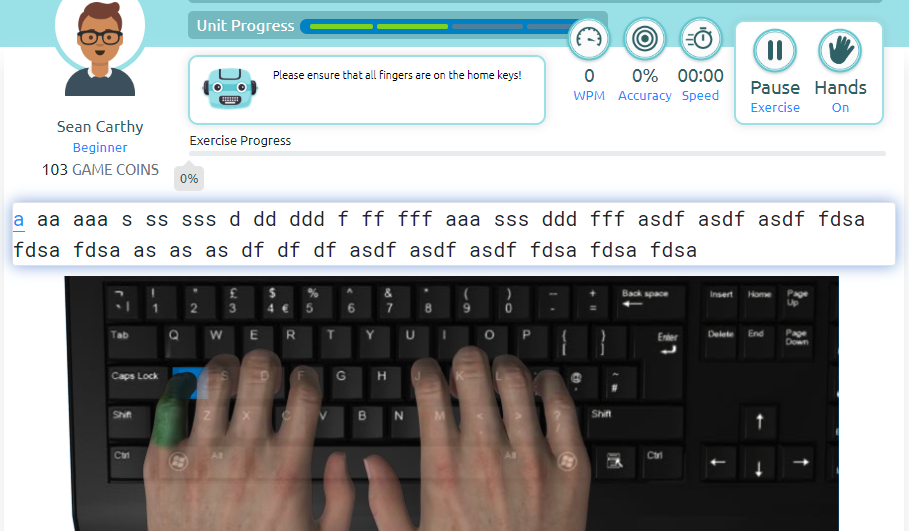
Typewiz is an engaging online typing tutor designed for kids, offering a fun and interactive learning experience. Features include:
Avatars and Games: Students earn coins to play games as they progress.
Performance Badges: Bronze, Silver, and Gold badges motivate students by marking their progress.
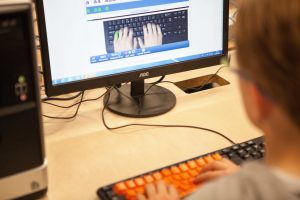
Visual Guides: Realistic hands and green fingers show the correct keys to press.
Progress Tracking: Students can view their scores and WPM statistics.
Typewiz is self-paced and can be used at home or in a classroom, with professional tutors available in Searsol centers in Ireland or online. A free seven-day trial is available for those interested.
For more information, visit www.typewiz.com.
Typewiz.com – a new innovative way to learn how to touch type!
We were recently why was there still a need to touch type in the 21st century. It was a good question and with the advent of new technologies, such as smartphones, tablets, hybrid laptops and text to speech. Maybe there isn’t such a need for touch-typing or was there?
Hunt and Peck
The hunt and peck typing method is a very popular method to input text on the keyboard. This is where a person types but moves his fingers around the keyboard until the find the correct letters. Where a person can type sufficiently using the hunt and peck method, it is still error-prone and can reduce the efficiency of the person typing compared to a person who can touch type.
Touch typing/keyboarding
Touch typing (also called keyboarding) is typing without using the sense of sight to find the keys. Specifically, a touch typist will know their location on the keyboard through muscle memory. In today’s competitive job market, it is important for anyone applying for any job that involves the use of computers to learn to touch type. And it is not stretching it to suggest being able to type fast without looking at the keyboard is a 21st-century basic skill in computers.
Advantages of touch typing
The main advantages of touch typing are as follows:
Speed
Touch typing training can improve an individual’s typing speed and accuracy dramatically. The accepted average typing speed is 40 WPM (words per minute), professional career typists can exceed 100 WPM repeatedly and continuously (secretarial, data entry, etc.). Every individual learns at a different pace, and routine practice is required to maintain a high typing speed and accuracy.
Reduced switching of attention
A touch typist does not need to look down at the keyboard (that is obscured with fingers and maybe poorly lit) and other areas that require attention. This increases productivity and reduces the number of errors.
Overall the payback from learning how to touch type outways the inefficiency of other input methods. Once you have the skill it will stay with you for the rest of your life. So how do you start to touch-type? Why not try our seven days free trial of our typing tutor Typewiz? For more information go to www.typewiz.com
Now that you have been awarded a laptop exemption to type out your Junior or Leaving Cert – what next?
Having to sit through State exams answering questions with pen and paper for hours at a time is all very well for those for whom writing poses no problems, but what about students who struggle to form letters and words?
Thankfully the Irish State Examinations Commission registers the fact that many students today have difficulty with writing. In recognition of this and the fact that typing is now the accepted professional version of writing, exemptions are now readily available for those seeking to type rather than write their exam responses.
If you or your child has already been awarded an exemption to use a laptop/word processor for your Junior/Leaving Cert due to a handwriting impairment, here at Searsol we extend our congratulations.
For those still in the process of applying for the exemption, please note that the Department of Education will be looking for proof that your child can, or is in the process of learning how to type. At the end of the day, the exemption will be granted on the basis that your child’s typing skills are better than their handwriting skills.
Searsol touch-typing courses
In order to ensure your child masters correct touch-typing skills, Searsol runs a series of after-school touch-typing classes for children and young adults that are designed to help each individual learn correct touch-typing practice at their own pace.
Searsol provides touch typing courses nationwide. Our classes are delivered in a classroom setting. We use our own touch typing tutor Typewiz which consists of a series of lessons to help students advance from beginner to proficient touch typist. Tutors work individually and collectively with students to help them progress through the course in order to gain proficiency. They are monitored by trained tutors who check that they are doing the correct finger placement.
Students can revise over previously completed exercises at home using their own login details.
Please feel free to get in touch with your nearest Searsol provider – course details are available here on our website.
Typewiz is also available to access from the home. You can sign up to Typewiz by going to Typewiz.com
Exemption guidelines
According to the guidelines for State exams, as set out by the State Examinations Commission, the use of mechanical aid, such as a word processor, is appropriate where it can be established that a candidate’s ability to produce a legible script is compromised.
There are two separate categories under which a student may be deemed eligible for this exemption from handwriting, as follows:
Illegible handwriting – which renders a script unintelligible due to the frequency of spelling/grammar/punctuation errors.
Slow writing – where the rate of writing is so slow that it renders a student unable to complete exams.
In order to apply for an exemption from writing, students must submit a completed Junior Certificate/Leaving Certificate reasonable accommodations application form, outlining the particular difficulty, and this must be signed by the school principal.
The Commission accepts the school’s confirmation on the application as sufficient evidence to permit an exemption.
Once you have been awarded your exemption to use a word processor, you will also be exempt from having your exam answer assessed in regard to spelling, punctuation, or grammar. This applies specifically to exams in any language subject (Irish, English, French, Spanish, etc). However, students granted the use of a word processor must ensure spell-check and autocorrect are turned off.
Further info on Reasonable Accommodations for Junior and Leaving Certificate Examinations can be found on www.examinations.ie
What typing speed do you need for state exams?
There is no official guidance from the department of education on the exact typing speed your child should be at. Searsol recommends that your child have a typing speed of 25 word per minute or greater. This would be our silver grade on typing classes.
State Examinations Commission
The State Examinations Commission now approves exemptions for Junior Cert students can also be carried through at Leaving Certificate.
The Commission also agreed that exemptions can be granted in cases where dyslexia has not been formally diagnosed. Welcoming this progress, the Dyslexia Association of Ireland issued a statement, as follows:
The accommodations are intended to limit the impact of the candidate’s disability on their exam performance, while not giving the candidate an unfair advantage.
The options students with dyslexia can apply for if they meet the criteria are:
• Access to a Reader
• Use of a Recording Device or Word Processor/Laptop
• Access to a Scribe
• Waiver from the assessment of spelling, grammar, and punctuation in the language subjects
Accommodations at Third Level
Many third-level colleges and examination bodies make provision for dyslexic students taking written exams. These provisions can include being given extra time, being allowed to use a word processor/computer, having the specific difficulty is taken into account when marking the exam paper, etc.
Students should consult with the Disability Officer in their college, their Tutor, or Course Director, to find out precisely what provisions may be available.
Please contact your nearest Searsol after school typing centre for details on our touch-typing classes to ensure your child has the chance to perform at their best in State exams. Your child can also access Typewiz.com from the comfort of your home. Go to Typewiz.com for more details.
Why touch typing is beneficial for children with dyspraxia (DCD)?
Why touch typing is beneficial for children with dyspraxia (DCD)?
Dyspraxia (DCD) is a difficulty with thinking out, planning, and carrying out sensory/motor tasks. A recent study of nearly 7,000 seven and eight-year-olds in the UK found that just under two children in every 100 may have dyspraxia. This study used strict criteria for diagnosing the condition, which may explain why other sources suggest that six or eight people in every 100 may have dyspraxia.
Dyspraxia is more common in boys and sometimes runs in families. It may also occur alongside other conditions, such as attention deficit hyperactivity disorder ADHD.
Dyspraxia can make the process of writing laborious and even painful. This is why touch typing (keyboarding) is so frequently recommended for those with dyspraxia. Becoming more familiar with the keyboard or learning to touch type (being able to type with multiple fingers without looking at the keyboard) can be very helpful for children.
Once students are able to touch type successfully with accuracy and speed. This can help students unlock their potential and transfer easily their ideas onto electronic format without the frustration experienced when handwriting. Creativity is unlocked and the student’s self-esteem greatly enhanced.
The keyboard has many important advantages:
It increases legibility and clarity of presentation
Increased speed of the input
Spelling – learning physical letter patterns on the keyboard can be helpful with the spelling of some words
Reduces the physical pressure and concentration of handwriting- pressing a key can be much easier than manipulating a pen or pencil
Editing work is easier
Confidence. The keyboard may allow the child to record work more independently and to produce the required work in the time allowed.
At Searsol, we have worked with children with dyspraxia to teach them how to learn to touch type. Children with dyspraxia need careful guidance and help so they can master the skills of touch typing. Searsol offers touch typing courses in our typing centres
Searsol provides after-school touch typing classes to students for students with learning differences such as dyspraxia, dyspraxia (DCD), and dysgraphia. We have centres in Ireland that allow Parents to bring their child up to trained up on how to touch type. More details about your nearest centre are available on https://searsol.com/find-centers/
Typewiz – typing tutor for kids
Typewiz online typing tutor for kids
Typewiz – be a wiz a typing
Typewiz.com is our new typing tutor for children who want to learn how to touch type at home. Typewiz is a fun and innovative way for children to learn how to touch type. Typewiz can be accessed at home. More details are available on Typewiz.com
Typewiz offers the following benefits:
It is a fun and interactive way to learn to touch type.
Children get to select different avatars as they progress up the lessons.
Kids can earn coins based on their performance on the course.
Coins can then be used in our games arcade where each coin spent allows the student to access one game.
Children can earn different word per minute badges (Bronze, Silver or Gold) as they become faster at typing.
Kids can earn lesson badges as they progress up the lessons.
Realistic hands with a green finger which shows the user what keyboard button to press.
Graphs of all previous percentage scores with Words Per Minute(WPM) are available to access for the student at all times.
Typewiz is a self-paced course which allows kids to work at their own pace at home
Searsol Computer Camps
Searsol provides Easter and Summer computer camps for children each year. These computer camps are were very popular and if you are interested in finding more about the course please go to our dedicated website which has more details about the camps www.searsolcomputercamps.com
Searsol franchise opportunity
Searsol also has its own franchise opportunity. The franchise opportunity allows individuals to set up the Searsol after school touch typing classes and camps in their own area. Full training and support are provided. To find out more about this go to our dedicated website www.searsolfranchise.com
If you have any other requests about Searsol, please contact us through the feedback form or call us on +353-1-6303384. We are on Facebook and Twitter and our contact details are on the website.
Touch typing (also called keyboarding) is typing without using the sense of sight to find the keys. Specifically, a touch typist will know their location on the keyboard through muscle memory. In today’s competitive job market, it is important for anyone applying for any job that involves the use of computers to learn to touch type. And it is not stretching it to suggest being able to type fast without looking at the keyboard is a 21st-century basic skill in computers.
Voice-recognition software allows you to convert voice to text. This has been available on computers and software such as Dragon Software, Text Aloud or Express scribe has allowed computer users to convert voice to text. But put it on a smartphone, and it comes to life. All of the frustrations of trying to control your PC by voice, fiddling for a microphone, repeating yourself, again and again, resisting the urge to relent and turn to your trusty keyboard.
These are eliminated when you use the same technology on your mobile phone. Mobile apps such as Google voice, Vlingo and Siri have allowed people to convert voice to text on the go with ease. So is the new way of doing things and should we not bother to learn how to type as these apps are doing the same job as typing?
The main disadvantage of voice recognition software are as follows:
Lack of Accuracy and Misinterpretation
Voice recognition software won’t always put your words on the screen completely accurately. Programs cannot understand the context of language the way that humans can, leading to errors that are often due to misinterpretation. When you talk to people, they decode what you say and give it a meaning. Voice recognition software can do this but may not be capable of choosing the correct meaning. For example, it cannot always differentiate between homonyms, such as “their” and “there.” It may also have problems with slang, technical words and acronyms.
Time Costs and Productivity
You might think that computerising a process speeds it up, but this isn’t necessarily true of voice recognition systems, and you may have to invest more time than you expected into the process. You’ll have to factor in time to review and edit to correct errors. Some programs adapt to your voice and speech patterns over time; this may slow down your workflow until the program is up to speed. You’ll also have to learn how to use the system. For example, you must find the right pace and tone — if you talk too fast or indistinctly, you’ll increase spelling and grammar errors. Getting used to using a system’s commands and speaking punctuation out loud is not always easy. This can affect the flow and speed of your speech.
Accents and speech recognition
Voice recognition systems can have problems with accents. Even though some may learn to your speech patterns over time, you have to learn to talk consistently and clearly at all times to minimize errors. If you mumble, talk too fast or run words into each other, the software will not always be able to cope. Programs may also have problems recognizing speech as normal if your voice changes, say when you have a cold, cough, sinus or throat problem.
Background Noise Interference
To get the best out of voice recognition software, you need a quiet environment. Systems don’t work so well if there is a lot of background noise. They may not be able to differentiate between your speech, other people talking and other ambient noise, leading to transcription mix-ups and errors. This can cause problems if you work in a busy office or a noisy environment. Wearing microphones or noise-cancelling headsets can help voice recognising software reduce the effects of noise.
Physical Side Effects
If you use voice recognition technology frequently, you may experience some physical discomfort and vocal problems. Talking for extended periods can cause hoarseness, dry mouth, muscle fatigue, temporary loss of voice and vocal strain. The fact that you aren’t talking naturally may make this worse and you may need to learn how to protect your voice if you’ll use a program regularly.
To summarise voice recognition can have its benefits, such as being able to input voice to text on the go using smartphones. But the main disadvantages outline above makes voice technology a handy add on to the basic input of touch typing. So there will always be a need to touch type. Why not learn how to touch typing using our online typing tutor Typewiz designed specifically for children? More details are available on Typewiz.com Searsol provides touch typing courses in check out the nearest typing centre near you by clicking on the following link.
Touch-typing is a skill that grows from training your fingers to automatically hit the correct characters on a keyboard in order to type the words and sentences you wish to compose. The method is called touch-typing because, over time, your fingers are trained to find the relevant letters by touch as opposed to look – so that you no longer need to look at the keyboard. This frees you up to look directly ahead at the screen and concentrate on what you are typing and how you want to present it. Thus making you more efficient and capable of multitasking.
Hunt and Peck typing, on the other hand, refers to typing through looking at the keyboard, hunting around for the character key you wish to press – and then pecking at it! The Hunt and Peck method is less efficient as it forces your attention onto the keyboard in order to find characters, instead of onto the screen, where you need to look to monitor your work. The hunt and peck method of typing is not a method as such, it is not fixed, therefore there is no rhyme or reason to it. Consequently, any finger can hit any key at any time, which leaves little room for developing proficiency or typing speed. Thus making you less efficient and incapable of multitasking.
How touch-typing works:
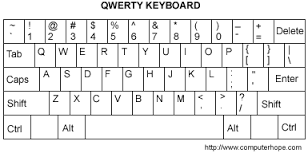
The QWERTY keyboard – so-called from the word QWERTY – which can be made up from the letters on the top row of the keyboard – is specifically designed to work for touch-typing. The layout of the entire keyboard complete with all letters of the alphabet, punctuation marks, numbers, and symbols, is fashioned in a manner that optimises correct finger movement for touch-typing. If you want to read more about the QWERTY keyboard check out our blog on why the QWERTY keyboard has survived so long compared to other easier input methods.
In essence, the method entails teaching individual fingers specific letters and characters to press on the keyboard – and then memorising these movements. Each finger types a fixed selection of letters and nothing else. Once all fingers know where they must go – so to speak – they can work in combination to efficiently and effectively cover the entire alphabet and keyboard.
With practice, touch typing becomes much easier and once the system ‘clicks’, the learner can go on to achieve higher typing speeds and build up their words-per-minute rate.
Touch-typing – correct technique
Touch typing is the ability to type without looking down at the keyboard. It is a skill that needs to be learned and it becomes better as you practice using the correct technique. The correct technique is to place your fingers on the home keys, left-hand fingers should start with the little resting on A button and the main index finger on F button on the keyboard. The right-hand fingers should start with the index finger on J button and the little finger on the ; semicolon button. If you are interested in learning how to touch type, check out our new typing tutor Typewiz which is specifically aimed at teaching children how to touch type in a fun and interactive way.
On a practical basis, the system can be explained as follows:
Typewiz.com – be a wiz at typing!
Left hand – what letters your left fingers should be typing:
Little finger (pinkie): types the letters A, Q and Z.
Ring finger: types the letters S, W and X.
Middle finger: types the letters D, E and C.
Index finger: types the letters F,R,V,B,G, and T
Right hand – what letters your right fingers should be typing:
little finger (pinkie): types the following characters Semi-colon(:), P and Full stop (.) only.
Ring finger: types the characters L, O and comma (,).
Middle finger: types the letters K, I and M.
Index finger: types the letters J,U,M,N,H, and Y
Already you can see from looking at the keyboard that just learning these three-finger movements will help you cover nine letters in the alphabet and a good left-hand portion of the keyboard. Complete touch-typing will show you where all eight fingers go on the keyboard (the thumbs are only used to press the Space Bar) so that, when working together, your fingers can fly around the keyboard as you touch-type and build up your typing speed.
Our new typing tutor typewiz.com is now available to any student that wants to learn how to touch type.
Typewiz is a new fun and interactive way to learn to touch type.
Typewiz is run through our Searsol centres monitored by our professional Searsol tutors (Ireland only).
Students get to select different avatars as they progress up the lessons.
Students can earn coins based on their performance on the course.
Coins can then be used in our games arcade where each coin spent allows the student to access one game.
Students can earn different word per minute badges (Bronze, Silver or Gold) as they become faster at typing.
Students can earn lesson badges as they progress up the lessons.
Realistic hands with a green finger which shows the user what keyboard button to press.
Graphs of all previous percentage scores with Words Per Minute (WPM) are available to access for the student at all times.
Typewiz is a self-paced course that allows students to work at their own pace in a classroom environment or at home.
If you are interested in trying out typewiz. Chat with us online or contact Searsol at info@searsol.com.
As every parent knows it is difficult to be a teacher and parent with your child. While a parents role is to nourish, encourage and motivate your child achievements. A teachers job is to instil a routine of learning that helps a student learn their subject in the easiest way based on the student’s abilities. Where the problem arises is when you become both the teacher and the parent.
The problem is that sometimes you be in your best attention try too hard to encourage your child to learn a subject, that you become the pushy parent and your child rebels and won’t listen to you. The end result is that your child doesn’t learn and it is up not learning the subject matter that you wanted them to learn. It really depends on your relationship with your child, your teaching abilities and the child focus on success and motivation to learn a subject.
To learn touch typing requires effort and dedication. A student would need to put in the least 20 hours of solid learning before they will be able to master the keyboard. Even then their speed would be quite slow but they would be aware of the keyboard buttons and be able to select them without looking at them.
As a parent, if you want your child to learn to touch type, the options are as follows:
Hope that your school teaches touch typing as part of the computer curriculum. Most schools don’t so best check with your school on this.
Learn how to touch type at home. This is a great idea but it really depends on your child and set about a dedicated time to achieve this. A child needs to be actively monitored and ensure that correct fingers are on the home keys.
Send your child to a trained professional who has taught children how to touch type. This is really the ideal way to learn how to touch type. Your child is an environment with similar children of the age profile learning how to touch type.
Learning how to touch type does require patience, motivation and concentration but it can be learnt by anyone. We recommend the ideal start age is for a child to be the primary age group from eight onwards. If a child picks learns how to touch type before they enter secondary school then they have managed to master a major skill that will benefit them in the long run.
As Searsol, we offer the possibility to learn how to touch type online with our online typing tutor (www.typewiz.com). More details are available on www.typewiz.com. We also offer dedicated typing centres in Ireland. To check out the location, click on https://searsol.com/find-centers/. We also run intense computer camps that teach touch typing over Easter and Summer, to check out our camps, click on the following link http://searsolcomputercamps.com
Searsol offers a new exciting business opportunity for the right person who has the motivation and desire to succeed in business. This unique franchise opportunity provides you with the training and systems to run a Searsol franchise. Our franchise provides children with touch typing and computer skills to enhance their future prospects.
Searsol delivers high quality, bespoke, structured computer-based learning that improves our student’s capabilities through the acquisition of knowledge, new life skills that enhance their confidence and self-esteem and improve their future prospects.
Due to the high demand for our services we are now looking to develop our existing operations through new strategic Franchise Partnerships. Searsol offers a proven business model, a strong brand, and all the training and support you need.
The Searsol franchise offers you the following:
Run the business and maximise revenue
A strong, unique, well-established brand with a proven business formula
Credibility and use of the Searsol brand
Comprehensive start-up package which includes systems, tools and processes to run the business
To find out how we can help you start your own profitable business call Searsol on +353-1-6303384 OR to request a free franchise prospectus click on the following link.
If your child has dysgraphia and poor handwriting speed, what can you do to help?
Poor handwriting speed can be a frustrating issue for children, especially if they are expected to keep up with their peers in the classroom. In today’s digital age, typing may be a helpful solution for children who struggle with handwriting.
According to Amundson (1995), the average typing speed of a child aged 10 is about 10 to 12 words per minute and when that child reaches an age of 14 their writing speed increases to around 16 words per minute. If your child has a learning difference such as dysgraphia their handwriting speed will be significantly slower. Their handwriting can be illegible and difficult to read. Dysgraphia is a nervous system problem that affects the fine motor skills needed to write. It makes it hard for a child to do handwriting homework or classwork.
As a Parent you will be worried at your child’s slow handwriting speed so what can you do to improve it. Try these tips to help improve your child’s handwriting skills and make lessons more productive and enjoyable for you and your child.
Use a research-based handwriting program. Your child’s teacher may recommend one that suits your child.
Provide short bursts of handwriting exercise instead of long, drawn-out sessions. Many kids with dysgraphia need to work on fine motor skills. Activities such as colouring, cutting, painting, model-building, working with clay, working pencil mazes, and threading beads will increase dexterity and build fine motor skills.
Schedule handwriting practice time for 15 minutes a day.
If your child can’t remember how to form letters consistently, writing them correctly at times, but incorrectly at other times. This could be a sign that he has problems with your child’s working memory.
Work on correct letter formation by using multisensory methods and techniques that don’t require writing. Finger writing in the air, in the sand, in shaving cream, or on sandpaper are all great exercises that can encourage improvement in proper letter formation.
If your child’s handwriting speed doesn’t improve within six months using the techniques described above. Then it might be worth looking at introducing technology to assist your child with his / her writing skills. The best way would be to introduce your child to a computer and keyboard and learn how to touch type. Touch typing is being able to type without having to look at keys on the keyboard.
One of the main benefits of typing is that it allows children to communicate their thoughts and ideas more quickly. When writing by hand, children may become slowed down by the physical act of writing, which can hinder their ability to express themselves fully. By typing, children can input their thoughts onto a screen at a faster pace, allowing them to better keep up with their own ideas and thoughts.
In addition to improving communication and expression, typing can also help children improve their spelling and grammar skills. When writing by hand, it can be difficult to catch and correct mistakes, but when typing, children have the ability to use spell check and other tools to ensure that their writing is error-free. This can help improve the overall quality of their writing and boost their confidence.
Another benefit of typing is that it allows children to easily save and organize their work. When writing by hand, children may struggle to keep track of their notes and assignments, leading to disorganisation and frustration. By typing, children can easily save and access their work, making it easier to stay on top of their assignments and projects.
Overall, typing can be a valuable tool for children with poor handwriting speed. It allows them to communicate their thoughts and ideas more quickly, improve their spelling and grammar skills, and stay organised. Encouraging children to type, either through traditional keyboarding classes or through the use of assistive technology, can help them overcome their struggles with handwriting and succeed in the classroom.
If you are interested in getting your child to learn how to touch type at any of Searsol educational centres https://searsol.com/find-centers/
How to make learning easier for your child at home.
When a Parent becomes the Teacher at home, there is a barrier that needs to be breached for it to work. What can happen is the child can become resistant to learning when their Parent is the Teacher. Due to the coronavirus outbreak, all schools are closed in different parts of the world and children have to do their work at home under the supervision of the Parent. While this seems to be a great opportunity to provide a helping hand with your child’s educational development it can lead to difficulties.
Children really learn better when they are taught by someone else in a classroom setting. They are more open to another voice telling them what to do and they learn better in the classroom environment where they are watching other children work. They become self-motivated and are eager to impress the Teacher. At home none of these things is present and it can lead the student to become less motivated and struggle with the home learning experience. As a short-term solution if there is proper structure and a timetable it can work. But over the long term, the classroom environment is a better form of learning.
Tips to make home learning easier:
Make sure your child gets sufficient sleep.
Ensure that they are properly hydrated and have a well-balanced diet.
Provide a timetable where your child has a good understanding of what they are supposed to be doing on a daily basis.
When studying or doing their homework, remove all devices such as smartphones away from your child as they will become distracted.
Encourage your child and praise any work they have done.
Let your child work through their work and then correct it after
Ensure that your child takes breaks and is hydrated.
Be realistic with what work your child can do on a daily basis. This is especially important if your child has a learning difference.
Encourage your child to do some exercise, even ten minutes of exercise can help them to stay fresh and get through their work.
Try to not have arguments with your child if they make a mistake. Positive and understanding work best.
Review their work and correct any mistakes.
A Parent should provide a positive and engaging environment that can help their child learn at the best of their ability. Encouraging your child with positivity can only not only help them to stay motivated but will provide a better letter experience for your child and yourself.
Your child may learn best in a classroom environment but home study can be a good alternative over a short term crisis.
Touch typing is the ability to type without looking at the keyboard. It is a memory skill that requires practice and patience. Correct habit formation can help you learn how to touch type successfully.
Ensure that you are sitting correctly with two feet on the ground and the keyboard in alignment with your body. Sit up straight, feet to the floor, elbows at my side, eyes only on the text and never on the keyboard.
Introduce your hands to the home keys – left hand will use asdf, the right hand will use jkl;. Curve your fingers on the home keys and only ever move the finger that needs pressing on the key. The F and J keys will have a little bump on them to help you find them without looking down at the keyboard
Always return your fingers to home keys before selecting another key on the keyboard.
Try and maintain a rhythm when you are typing.
Use the thumb to press the spacebar.
Always correct errors by raising your little finger up to the backspace button
Take regular breaks when learning how to type.
Don’t use the cap locks button when trying to capitalise a letter, use the shift keys instead. There is two shift keys on a keyboard, the shift key to left operates the buttons to right and shift key to right operates the key to the left.
Take your time when learning how to type, speed will come naturally once you have memorised the keys on the keyboard.
Use a keyboard cover, to cover the keys on the keyboards. We recommend the use of speekskin cover, this is the one we use in our tying centres.
Practice at least one hour per week. Practice! Practice! Practice!
When learning how to touch type, expect typing to decrease initially compared to how you normally would touch type.
Know your keyboard. Familiarise yourself where the keys on the keyboard are by clicking on keys suggested on the typing tutor you are using. By making mistakes initially you are learning to touch type successfully in the long term.
Stretching – when you fingers get stiff. Take a rest and give them a good shake for a minute. This will help increase the blood flow into your fingers.
Accuracy – it is more important to be accurate when starting off at typing. Accuracy helps you learn the keys on the keyboard more quickly.
A key has to pressed by the same finger all the time on the keyboard.
Keep a record of your problem keys and practice correcting them.
Take breaks from typing by playing typing games.
Practice using real words and sentences, this can be used in real-life projects.
Stay motivated and enjoy as the reward from learning how to type will be the biggest skill that you ever learn.
Typewiz
Typewiz is a fun and interactive way to learn how to touch type.
Typewiz offers the following benefits:
It is a new fun and interactive way to learn to touch type.
Your child gets to select different avatars as they progress up the lessons.
Kids can earn coins based on their performance on the course.
Coins can then be used in our games arcade where each coin spent allows the student to access one game.
Your child can earn different word per minute badges (Bronze, Silver or Gold) as they become faster at typing.
Kids can earn lesson badges as they progress up the lessons.
3D hands with a green finger which shows the user what keyboard button to press.
Graphs of all previous percentage scores with Words Per Minute(WPM) are available to access for the student at all times.
Typewiz is a self-paced course which allows students to work at their own pace.
For more information about Typewiz, check out typing tutor at www.typewiz.com
What is the vital ingredient needed to learn how to touch type?
Typewiz – be a wiz at typing!
When making brown bread, you need all the ingredients for the brown bread to come out right and that you are happy with the result. You follow a recipe and ensure that you are adding in the correct amounts of each particular ingredient and follow the instructions so you are satisfied that the end result is that you produce a brown bread that you are happy with.
The same applies when learning how to touch type. The ingredients that Searsol offers in our touch typing courses are as follows:
Typewiz – a touch typing program specially formulated so that your child earns rewards such as badges and game coins to be used in the games arcade
Tutors – that are specially trained and encourage each student to work to the best of their ability
Positive environment – Searsol provide a positive environment where students are praised and recognised for their hard work
Practice and routine – each student attends the class each week and this helps them practise their touch typing skills.
Revision – students can revise over the exercises that they have completed previously.
Certificates – end of term certificates show the students how far they have progressed on the course.
All these ingredients that Searsol controls and offer to all our students. But there is one vital ingredient that is required in order to be successful when learning how to touch type. This key ingredient is Motivation. The definition of motivation is the act or process of giving someone a reason for doing something.
If a student is not motivated to learn how to touch type, they are missing a vital ingredient and will not learn how to touch type or learn incorrectly. It is like leaving out the baking soda in a brown bread recipe, the brown bread will not rise and the end result will be unsatisfactory. Without motivation, a Student will not master the skill of touch typing
Parents need to discuss with their child the importance of learning how to touch type and why they are doing the course. They need to be able to motivate their child so that their child can get their mindset focused on learning correctly. Examples could be an extra playing time on the game station or the possibility of a laptop if they obtain a good typing speed. Whether the Parent thinks will help their child to stay motivated and learn how to touch type.
The end result is that a child that is motivated to learn how to touch type will do extremely well on the Searsol touch typing course. They will learn a skill that will stay with them for the rest of their lives, whether it is school, work or personal usage. By using all the correct ingredients, you end up with a lovely slice of brown bread!
“Learning is not attained by chance. It must be sought for with ardor and attended with diligence.” – Abigail Adams
Do you know why QWERTY keyboard has survived so long? We outline the history of keyboard layout to you.
Mechanical Typewriters: 1870’s
In 1872, Remington Company produced the first mechanical typewriter, patented by Latham Sholes. Typists soon mastered the skill to typing that they were going so fast that were jamming the typewriter keys which flew up to hit the typewriter ribbon. In the late 1870’s, instead of solving the problem of why the typewriter was jamming, Remington redesigns the keyboard layout so as to slow down the typist by introducing the QWERTY keyboard. The “improved” QWERTY layout was designed to slow down typing and prevent typewriter keys from jamming anymore by slowing down the typist.
Electric Typewriters: 1930’s – Dvorak
Electric typewriters solve the problem of the keys jamming and new keyboards layouts were introduced. In 1936, August Dvorak patented a new layout to reduce finger reach and strain by putting common letters on the home row and to avoid awkward use of key pairs to improve speed. Here’s the Dvorak keyboard:
Design criteria sound good, so what’s wrong with this keyboard? Almost all letters move from their familiar QWERTY locations. The change was too big and relearning of this new keyboard layout would have taken people a month to get familiar with the Dvorak keyboard. Hence the uptake on this new design was poor with typist preferring to stick with QWERTY keyboard for typing.
Personal Computers: 1970’s
With the introduction of the personal computer in 1970’s, there was another opportunity to change from the standard QWERTY keyboard layout. But the QWERTY keyboard remained as Computers manufactures wanted the typist to engage with the computers. To make the change over to computers less of a hassle and to reduce the learning curve, the keyboard design was not changed.
Colemak
In 2006, a programmer named Shai Coleman released an alternative keyboard layout called Colemak. Just as Dvorak was a response to QWERTY’s shortcomings, Colemak addresses the failures of Dvorak but does so in a way that doesn’t alienate current QWERTY users. The intended result is a layout that aims for speed, efficiency, minimal repetitive stress injuries, and an easy learning curve for QWERTY typists.
The beauty of Colemak is that there are only 17 differences in key placement between it and QWERTY, yet those 17 differences are more than enough to create a radically improved typing environment. All other keys remain the same. As such, QWERTY users should not be afraid to learn Colemak.
Colemak eliminates virtually all cases of frequent letters in “stretched finger” locations. For example, Dvorak places ‘L’ in the QWERTY ‘P’ spot, which requires frequent stretching of the pinky. The positions of other keys have also been optimized with Colemak, such as moving the high-frequency ‘R’ and ‘I’ keys to the home row.
So should you change from QWERTY to learn a new keyboard layout?
If you spend most of your day typing on a computer, it’s worth looking into. The speed gains and injury reductions are real and they do add up over time. However, there are some things that you’ll want to keep in mind.
You’ll experience a big drop in typing speed while learning a new layout. A typical person trying to learning would need to set aside a whole month to learn a new keyboard layout. However, with the help of typing tutors such as our own Typewiz which helps you learn how to touch type in a fun and interactive way. For more details about Typewiz check out our website www.typewiz.com
Keyboard shortcuts can be an inconvenience. Due to Dvorak’s drastically different layout, shortcuts like CTRL+C (COPY), CTRL+ V (Paste) and CTRL + X (Cut) can be a pain. Colemak is less of a pain due to its similarities to QWERTY, but the differences still exist and you may find yourself frustrated from time to time when you accidentally hit the wrong shortcut keys.
Lastly, other computers will still be QWERTY. This isn’t a big deal but if you are using multiple devices it can be problematic if you switch computers a lot, or if other people use your computer it can cause problems and time delays in typing.
For me, the QWERTY keyboard is here to stay and it has been part of keyboard history and will not be changed. So it importing to learn typing on a QWERTY keyboard using a typing tutor is important. Why not book a free first session trial at our course centres where your child can learn how to touch type assisted by our trained professional tutors..
Will you stick with QWERTY or switch to an alternative? Or maybe you have already switched? Tell us what you think in the comments below!
It is more beneficial for your child to learn how to touch type at Searsol’s after school typing centres than at home for the following reasons:
A nationwide network of after school typing centres
Searsol offers a nationwide network of after school typing centre. We cover all the major cities in Ireland and are currently expanding our network of centres.
Each centre provides the same course and ensures high-quality training, delivery and success on after school typing courses.
Children and young people
Training is targeted at children and young people in order to help them develop typing skills – ensuring that the next generation learns correct typing skills during this technological age in which typing is a key skill. The training is done in a group situation but it is self-paced so each child learns how to type at a level that is happy with.
Dyslexia and dyspraxia
Children with dyslexia and dyspraxia are specifically catered to at Searsol in order to equip them with valuable touch-type skills as they progress through education. While writing and holding a pen can be difficult for students with dyslexia and dyspraxia, touch typing is a skill most young people can readily master. Typed homework and assignments ensure that students’ work can be properly assessed and graded as there is no issue around legibility – as is often the case with handwritten work.
After school training
Searsol after school touch typing courses takes place on weekdays after school or at the weekend, making it convenient for children to attend and for parents to arrange pick-up. Classes are for one hour each week with the course schedule arranged to synchronise with normal school terms.
Unique programme
Searsol pioneered its own unique touch-type programme that takes learners from beginner to advanced level through a series of organised lessons. Individual students are given their own private log-in details so that at each session they can record their progress and pick up from where they last left off.
No homework required
There is a natural progression as students move through the lessons following the Typewiz programme. All practice can take place during the course so there is no need to do additional work at home. On completion of the course, the student will be able to touch type proficiently which will enable them to use their new skill to deliver course work going forward.
Learn at your own pace
There is no onus on students to finish the course within a fixed time. Searsol runs parallel to school course terms one after the other so that students can continue practising and learning at their own pace until they complete the course. Students do not compete against each other. The goal is simply to complete the lessons in their own time.
Progress report
In addition to the week-to-week progress reports recorded on the system for each student, Searsol tutors also personally review student progress during each lesson, guiding and encouraging students as they learn and helping them overcome any challenges.
After school typing centres
Searsol centres offer free introductory first session trials so parents can see first-hand how the course works and children can enjoy a free trial assessment to get a feel for the programme. Parents are advised to book trial places in advance at their nearest course centre.
Established provider with a proven record
Searsol has been successfully running its touch-type service since 2008 teaching children all over Ireland how to touch type. The service offers qualified garda-vetted tutors experienced in teaching children how to touch type. Make sure your child is not left behind by engaging with Searsol now and booking a place on the course.
Testimonials
See testimonials on our website attesting to how Searsol is helping children develop concentration skills and grow confidence through learning how to touch-type.
Our course centres are now nationwide, click the image below to get your free first session trial!!
New Searsol touch typing classes starting in Blanchardstown, Dublin 15.
Searsol is starting a new after school touch typing class in Hartstown Community School in Blanchardstown starting on Wednesday the 29th of January 2020 at 4 or 5 pm.
The classes will be starting on the 29th of January 2020 in Hartstown Community School and will take place each Wednesday at 4 or 5 pm. Searsol is currently offering a free introductory first session trial of Searsol’s after-school touch typing courses for any child who is eight years old or older that may be interested in trying out our touch typing course.
Our touch typing course is specifically designed to develop typing skills for children. Searsol has provided after school typing courses for children since 2008. We have a high success rate of students that have successfully learned how to touch type. During the course, the student will learn how to touch type correctly assisted by a qualified tutor. We use our own specially designed typing software which is only available through our centre.
This course is suitable for children with learning differences like Dyslexia or Dyspraxia but also suitable for any child that wants to learn how to touch type and has gained an exemption to use a laptop for exams. To book your free trial place you can contact Searsol on 01-6303384 or book a free trial at our Blanchardstown centre by click here
Searsol has started a new after school touch typing class on in Mounttown Community Centre in Monkstown on a Thursday. We offer two classes, 3:30 pm and 4:30 pm class.
Searsol is currently offering a free introductory first session trial of Searsol’s after school touch typing courses for any child who is eight years old or older that may be interested in trying out our typing course.
Our touch typing course is specifically designed to develop typing skills for children. Searsol has provided after school typing courses over the last eight years in Ireland and have a high success rate of students that have successfully learnt how to touch type. During the course, the student will learn how to type correctly assisted by a qualified tutor. We use our own specially designed touch typing software which is only available through our centre.
This course is suitable for children with learning differences like Dyslexia or Dyspraxia but also suitable for any child that wants to learn how to touch type and have gained an exemption to use a laptop for exams. To book your free trial place you can contact Searsol on 01-6303384 or book a free trial at https://searsol.com/course-booking-first-session-free